Choose one moment
Start with morning, after school, evening, bedtime, or another familiar family rhythm.
A visual routine app for families
Parents create a Journey from a few picture-supported Quests. Kids see what comes next, check off each step, and build independence at home one Quest at a time.
Parents manage setup and changes. Kids use Maelorei day to day.
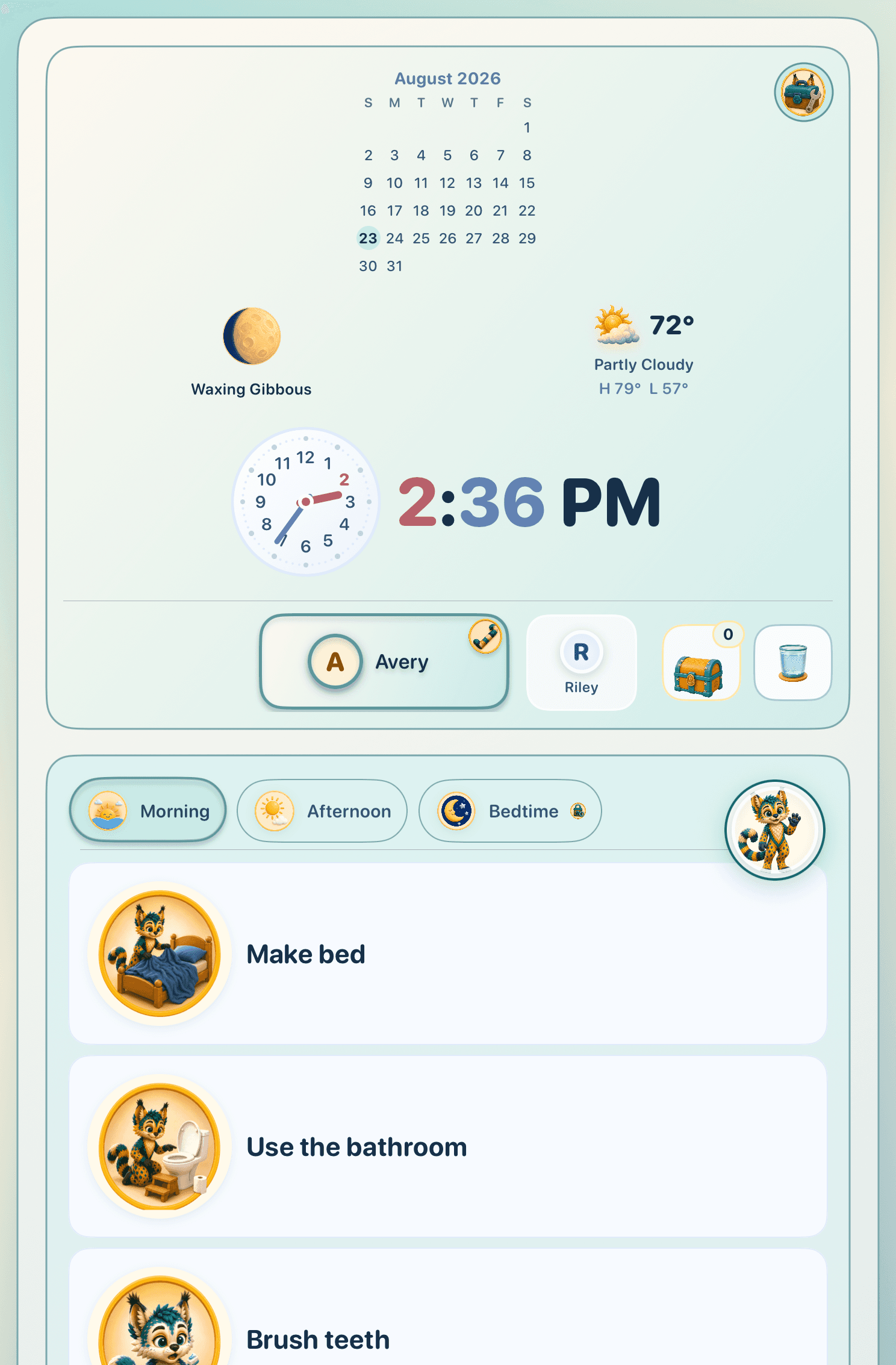
What kids see
A Journey shows a few Quests for one part of the day in a clear sequence. A Maelorei companion adds encouragement along the way.
Parents can choose pictures, pictures with words, or words only for each child.
Keep the first try small
You do not need to rebuild your family’s whole schedule to try Maelorei.
Start with morning, after school, evening, bedtime, or another familiar family rhythm.
Notice whether the picture-supported steps make the next action easier to recognize.
Share where either of you felt confused, slowed down, or pleasantly surprised.
Before you join
Connections, privacy, and supported devices—all in one place.
Maelorei does not sync with calendars, school apps, sports apps, or email.
No Maelorei account is required, and Journeys work offline.
Requires iOS 26.0 or later. Portrait and landscape orientations are supported.
Requires iPadOS 26.0 or later. Portrait, landscape, and resizable windows are supported.
Maelorei requires iOS or iPadOS 26.0 or later and has been tested on version 26.5. It does not run on Mac.
Getting set up
TestFlight is Apple’s app for installing beta software and receiving updates. The steps below show what to expect.
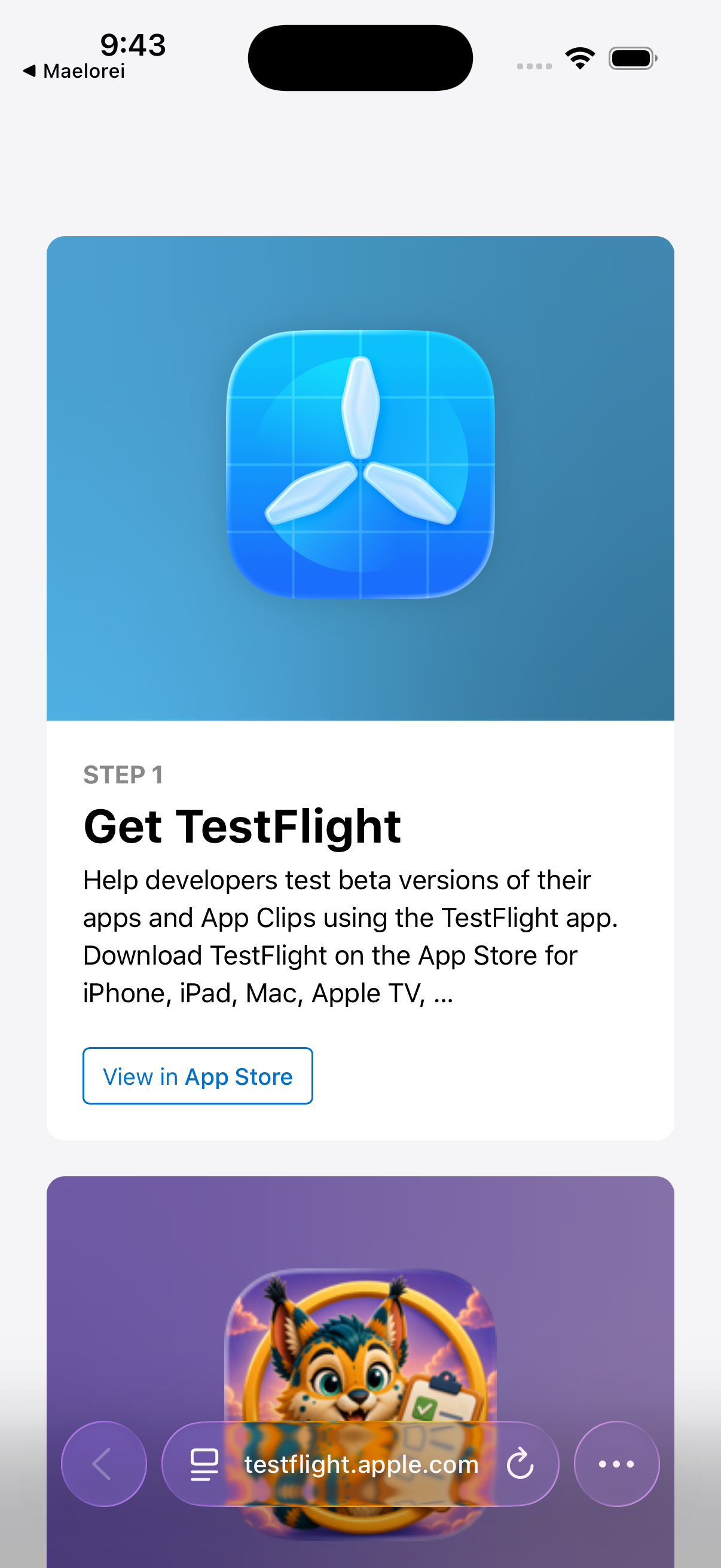
Select Continue to TestFlight. If TestFlight is not on the device, Apple will guide you to download it first.
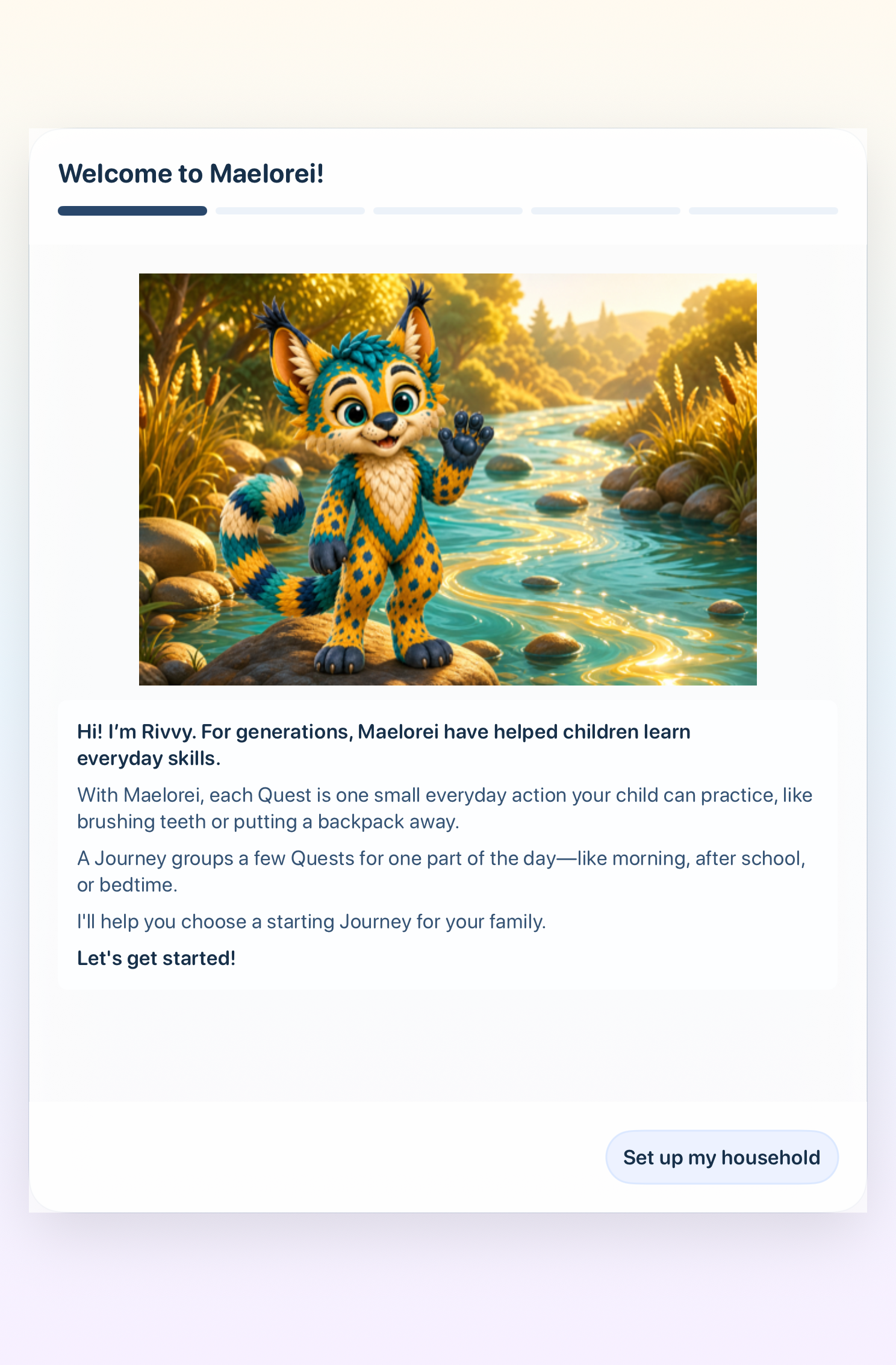
Return to TestFlight, choose Maelorei, and install the beta. When an update is ready, you will find it in TestFlight.
In TestFlight, send a screenshot and short comment when something feels unclear or does not work. For a longer note, use Maelorei’s feedback form.
Ready when you are
Help shape Maelorei Limited beta spots available